Documentation
Learn how Polypane improves your workflow
Layouts
There are five different layouts in Polypane:
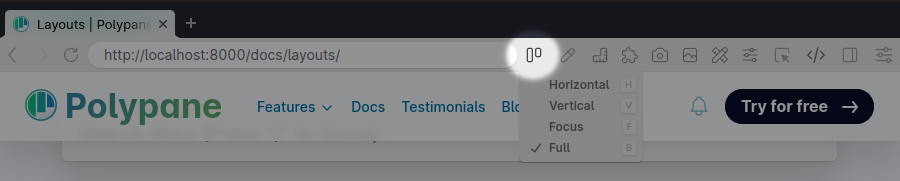
You can switch between layouts by clicking the Layout icon in the address bar. The panes in the horizontal and vertical layouts are shared, so your settings are retained between them. Focus layout has its own pane.
In horizontal and vertical layout, you can add as many panes as you like. In the focus layout, you get a single pane in the center of your view. Full layout is just like a regular browser.
Horizontal (shortcut: h)
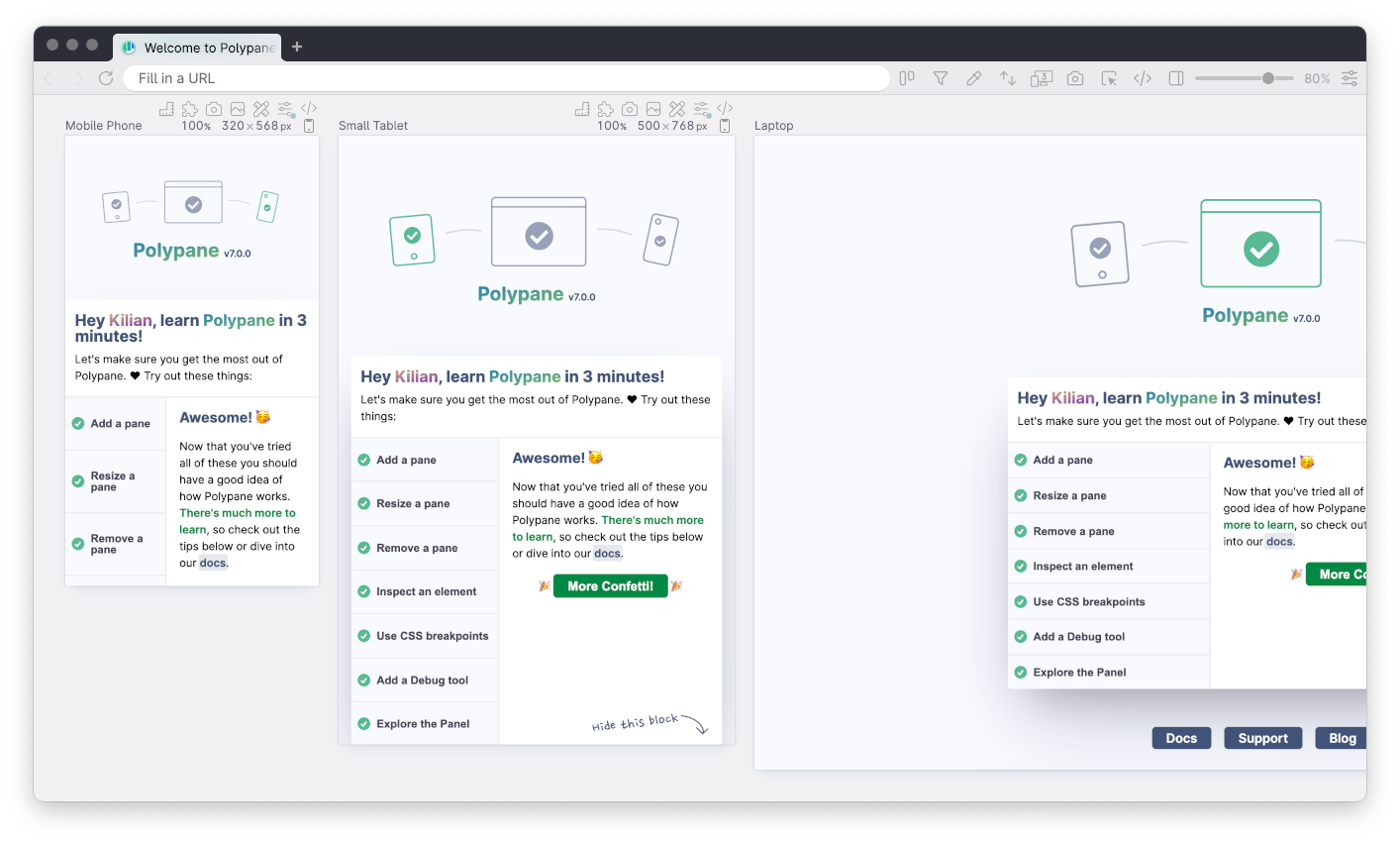
Horizontal layout is the default layout in Polypane. All panes are shown on a horizontal workspace side-by-side so you can easily compare them.
You can double click anywhere between panes to add a new pane there, and if you resize any of the panes the rest will automatically move out of the way.
In the horizontal layout, panes will automatically zoom to fit if they are too tall.
To zoom out such that all panes fit your window, press ⇧ ⌘ 0 or use the View > Zoom UI > Zoom to Fit option.
Horizontal scrolling
Polypane automatically converts normal scroll wheel scrolling to horizontal scrolling when you're in horizontal layout, but there are more ways to scroll horizontally:
- Holding shift while scrolling with a scroll wheel will scroll horizontally.
- If you have a touchpad, a two finger horizontal swipe will scroll horizontally.
- You can hold the spacebar and click to drag, like in most design tools.
- You can hold the middle mouse button (your scroll wheel) and drag to scroll horizontally like in most design tools.
- Use the home and end keys on your keyboard to scroll all the way left or right respectively, and page up/page down to scroll by a single view.
Vertical (shortcut v)
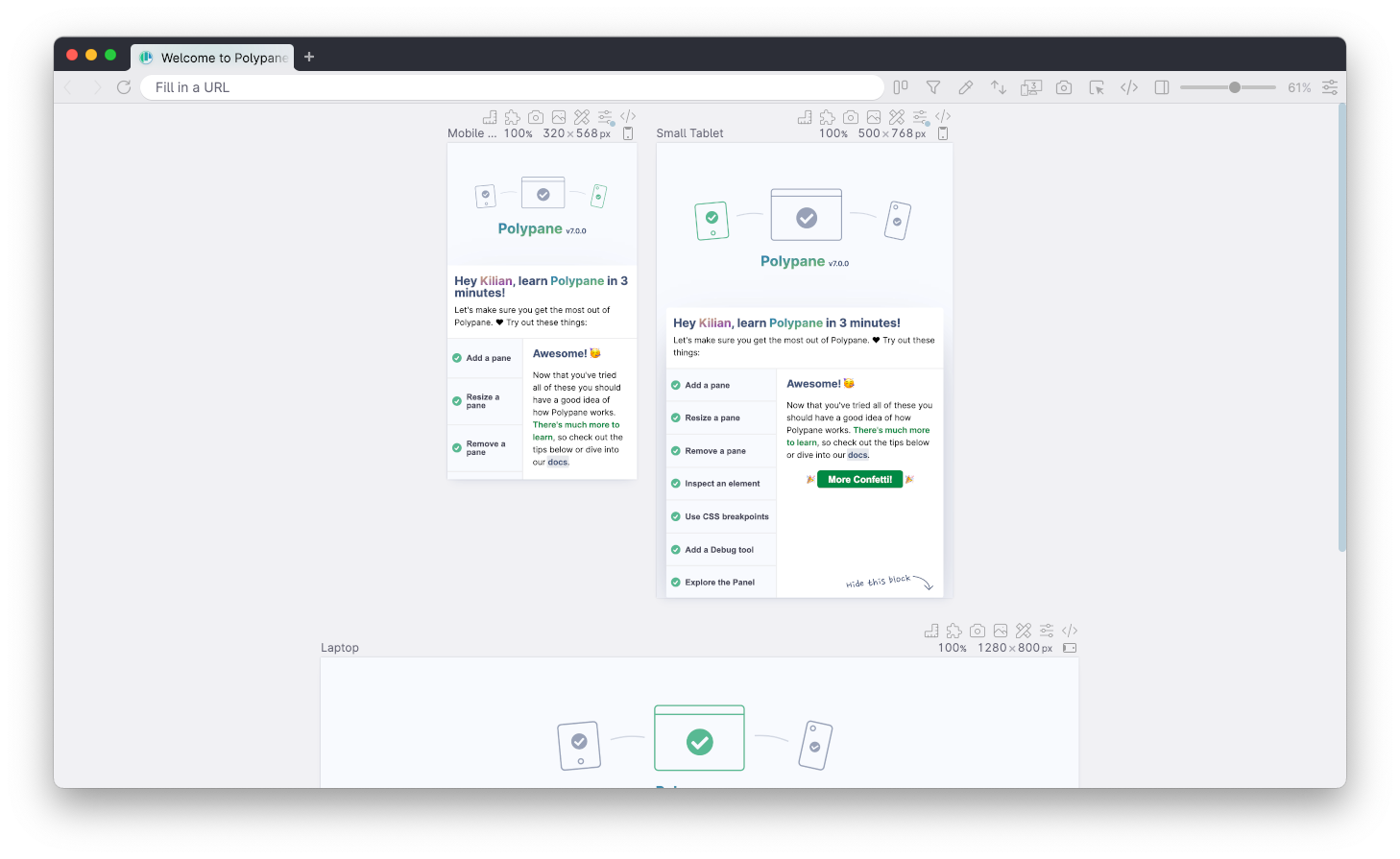
Vertical layout works much the same as horizontal layout, but panes wrap to the next line and you can scroll vertically to see them all. Vertical layout is useful if you want to see a ton of panes at the same time (just zoom out).
Apart from scrolling up and down or using the scrollbar, you can also press the spacebar or middle mouse wheel and drag up and down. You can also use home and end to scroll all the way left or right respectively, and page up/page down to scoll by a single view.
Aligning the panes
In the horizontal and vertical layouts you can choose to left, center or right-align the panes. The default for Horizontal is left-aligned and the default for Vertical is center-aligned.

Canvas (shortcut c)
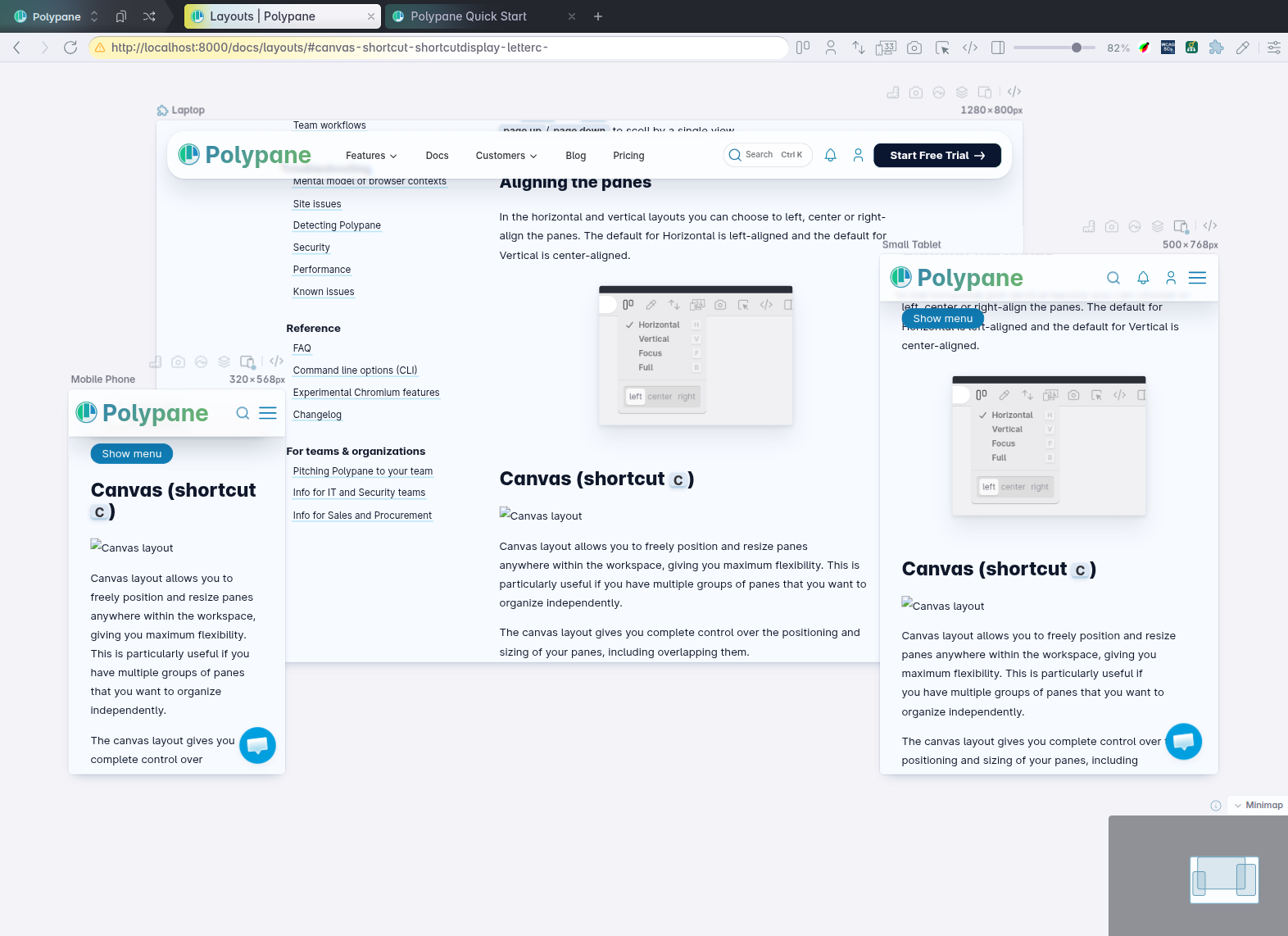
Canvas layout allows you to freely position and resize panes anywhere within the workspace, giving you maximum flexibility. This is particularly useful if you have multiple groups of panes that you want to organize independently.
The canvas layout gives you complete control over the positioning and sizing of your panes, including overlapping them.
You can move panes by dragging their headers and resize them by dragging their edges or corners. When you drag a pane, it will automatically snap to align with nearby panes. To disable this behavior, hold ⇧ while dragging.
Panning, zooming and navigation
Panning can be done with the scroll wheel (normal for vertical, hold ⇧ for horizontal) and by dragging with the middle mouse button or dragging when holding down space.
On devices with trackpads, two-finger scroll can be used to scroll freely in any direction.
To zoom, hold ⌘ and use the scroll wheel, or pinch on your trackpad if your device supports that.
To quickly zoom out to fit all panes within the workspace, press ⇧ ⌘ 0.
Adding panes
Like the horizontal and vertical layouts, you can add new panes to the canvas layout by double clicking anywhere. In Canvas layout, you can also hold ⌘ and click + drag to add a new pane. The dimensions are shown as you draw a rectangle, and the new pane will be created once you release the mouse button.
Minimap

The minimap in the bottom right corner provides an overview of the entire canvas layout, as well as an overview of canvas interactions.
The minimap is interactive, so you can use it to pan across the canvas or move panes around, both by clicking and dragging within the minimap.
Focus (shortcut f)
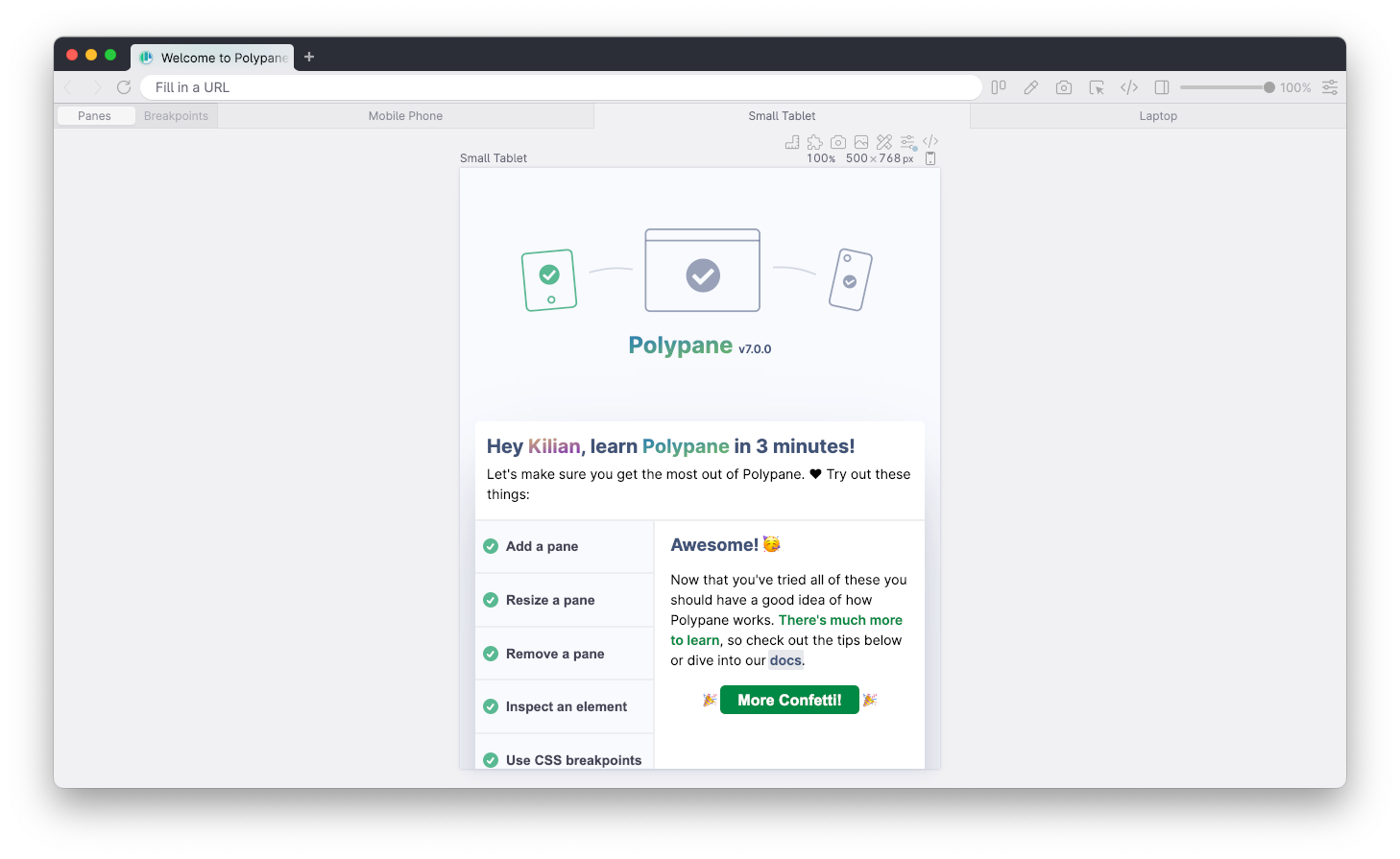
Focus layout shows a single centered pane, letting you focus on a single viewport and quickly iterate and try out different sizes.
When you try to increase the pane beyond the available width or height, either by choosing a preset or by dragging, Polypane will automatically zoom out the pane so it fits.
Quick switcher
The quick switcher shows a list of buttons at the top of Focus layout, letting you to quickly switch to any of the pane sizes from the horizontal/vertical view or any of the CSS breakpoints defined in the website you're currently viewing.
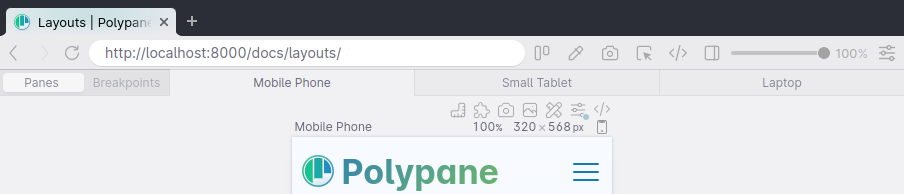
You can also use your left and right arrow keys to quickly switch between the sizes shown in the Quick switcher.
Split (shortcut s)
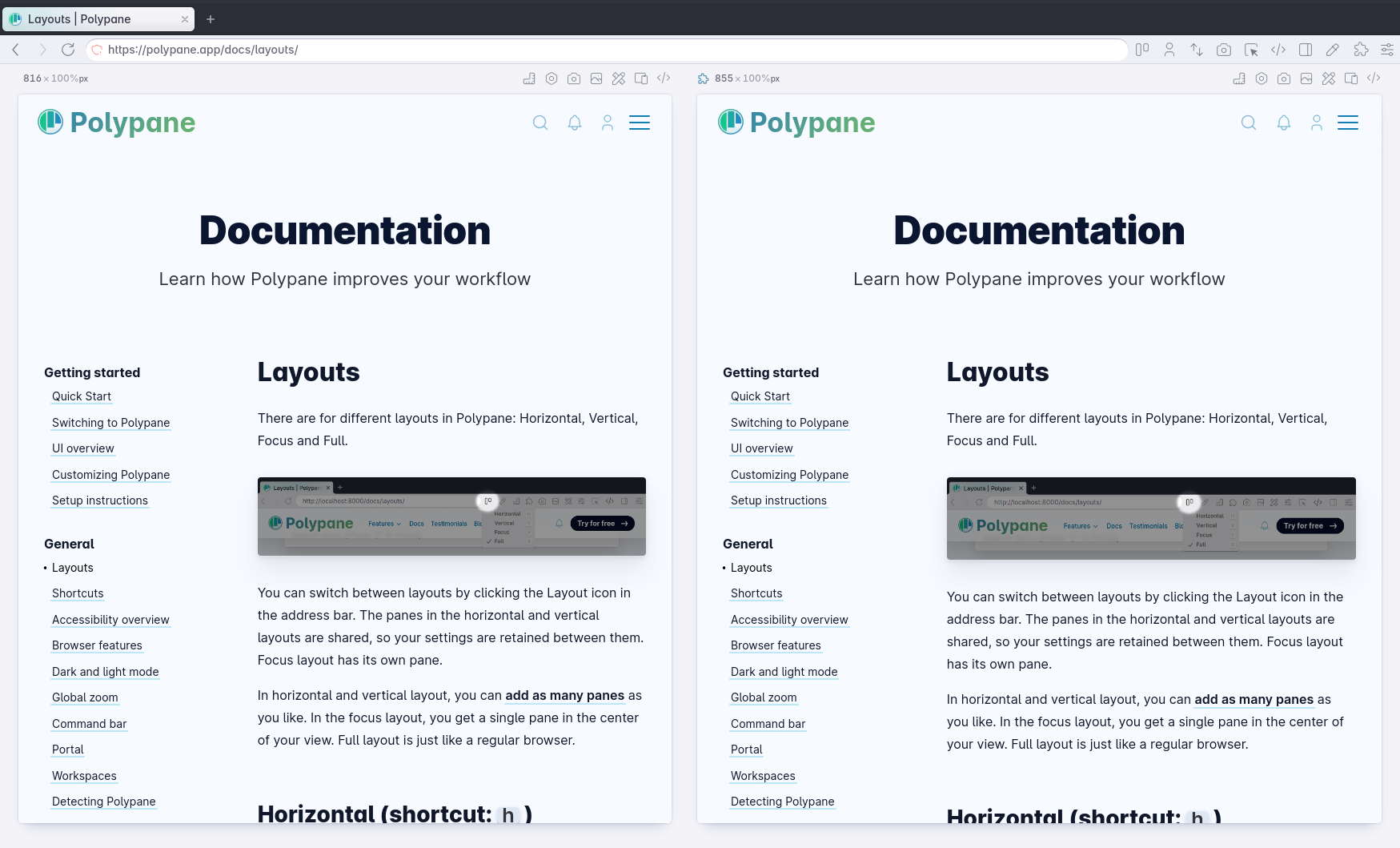
The Split layout puts two panes side by side with a draggable divider in the middle. The two panes always take up the full width of the workspace and will automatically update as you drag the divider.
Each pane can be full height, or have a custom height set by dragging or by filling in a specific custom value in the pane header.
Use this layout when you want to compare two things side by side: just a desktop and mobile layout, or two different URLs.
Full layout (shortcut b)
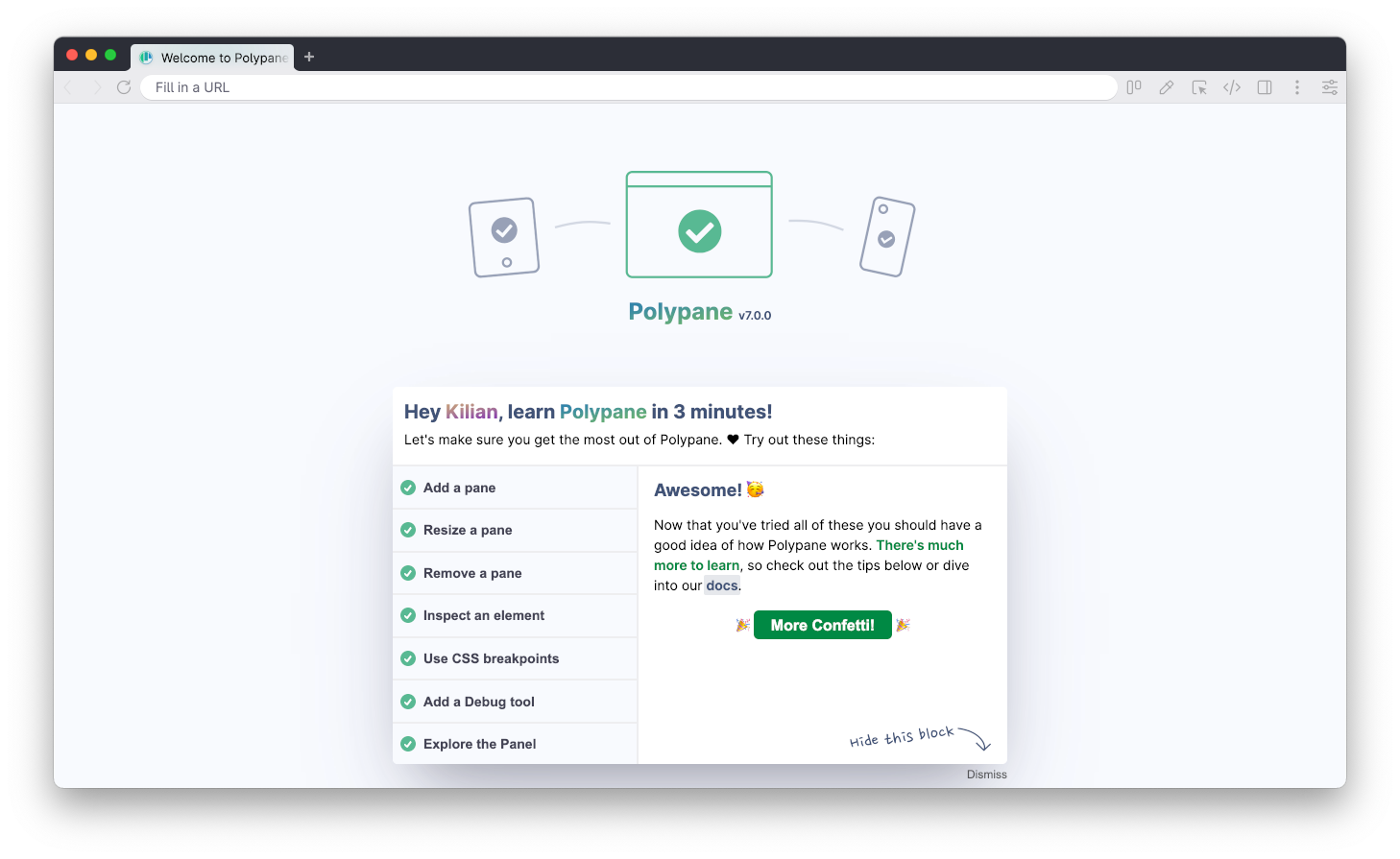
Full layout takes all the space available to show a website, just like a regular browsers. It's a nice way to work on sites when you're not working on the responsive aspects, but for example on the JavaScript.
When in Full mode, the pane header buttons are shown in the address bar.
Setting a default layout
To change which layout is used for new tabs, right click the plus button in the tab bar, then pick the layout you want to use for a new pane. From now on that layout will be used for all new tabs. You can see which one it is by looking at the checkmark in this context menu.
Have a question about Polypane?
Reach out via (real human) chat, Slack or our contact form:
Contact SupportBuild the way you already build, without missing anything.
Free 14 day trial, no credit card needed.
- 1 Create your account. Takes a minute.
- 2 Download the app. For Windows, Mac & Linux.
- 3 Build your next project with Polypane

